
Segments, tags & custom fields
Building filters, organizing contacts, and defining your own contact properties.
Segments
Open the Segments tab to see every saved segment with its contact count. Click New Segment to open the condition builder.
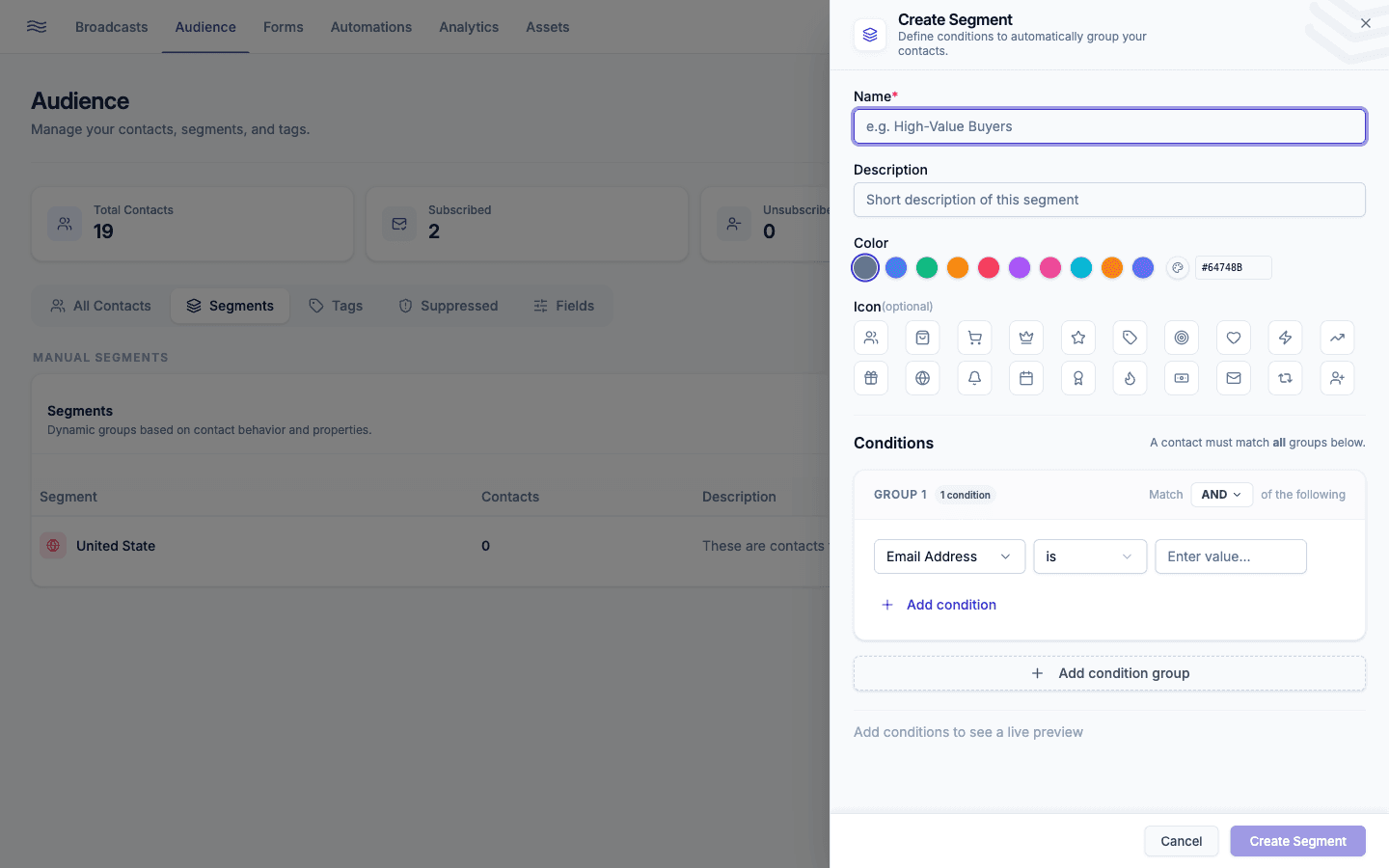
Building conditions
Conditions are grouped, and groups combine with AND/OR ("match all/any groups"); within a group, individual conditions also combine with AND/OR. The field picker is a searchable combobox grouped by category:
- Contact: email, first/last name, phone, source
- Location: country, city
- Subscription: status, date joined, days since joined
- Purchase: total spent, number of orders, avg. order value, days since last/first order (requires a connected store)
- Cart: has abandoned cart, abandoned cart value/days (requires a connected store)
- Customer: accepts marketing
- Engagement: has opened an email, has clicked a link, days since last open/click
- Audience: has tag, in segment
- Custom Fields: any field you've defined
- Ecommerce (Shopify-connected workspaces): has placed an order, has abandoned a cart, number of orders, total amount spent, days since last order
Operators available depend on the field type: is / is not, > ≥ < ≤, contains / doesn't contain, before / after, has / has not.
Give your segment an icon and color from the picker so it's easy to spot in dropdowns later.
Smart Segments are read-only
If you've connected Shopify or WooCommerce, you'll see a 🛍️ Smart Segments group with a "Shopify"/"WooCommerce" badge. These are generated and kept in sync automatically (Recent Buyers, VIP Customers, and so on): you can use them anywhere, but you can't edit their rules directly. Click Refresh Segments in Settings → Integrations if a count looks stale.
Tags
The Tags tab lists every tag with its contact count. Click New Tag to create one with a color, or Import to bulk-create tags from a file. Edit or delete existing tags from the row menu; deleting a tag removes it from every contact that had it.
Custom fields
The Fields tab is where you define your own contact properties beyond the built-in ones. Each field has a name, a type, and a "Subscriber editable" toggle (whether contacts can change it themselves from their preference center).
| Type | Use it for |
|---|---|
| Text | Free-form values |
| Number | Numeric values you might filter/compare on |
| Date | A specific calendar date |
| Month & Day | Recurring annual dates: birthdays, anniversaries (powers the Birthday and Anniversary automation triggers) |
| URL | Links |
| Boolean | Yes/no flags |
Deleting a field is permanent: it removes the field and its values from every contact that had it, and Peleka asks you to confirm before doing so.
Suppression list
The Suppressed tab lists every contact who bounced, complained, or unsubscribed. Peleka will never send to any address here. Each row shows the reason (Hard Bounce, Spam Complaint, Unsubscribed, or Manual) and the date suppressed, with an Export (CSV) option.
Spam complaints can't be self-removed
You can remove a bounce or manual suppression yourself, but entries from spam complaints can only be removed by Peleka: contact support. A complaint is a direct signal from the recipient's own mailbox provider, and letting merchants clear those themselves would put shared sender reputation at risk. Removing any suppression entry doesn't automatically re-subscribe the contact, so only do it if you're sure the original bounce or complaint was a mistake.