
Building a form
The 4-step form wizard (Setup, Design, Settings, and Share), plus embedding.
Every form goes through a 1. Setup → 2. Design → 3. Settings → 4. Share wizard. A "Live" badge appears once it's published.
1. Setup
- Internal Form Name: for your team only, never shown to visitors.
- Form Type: Popup Modal, Landing Page, or Inline Embed (see Forms overview for what each does).
- Form Layout: Standard (centered fields), Split Left (image left, form right), or Split Right (form left, image right).
- Assign to Segment (optional): automatically add new subscribers from this form to a specific segment.
2. Design
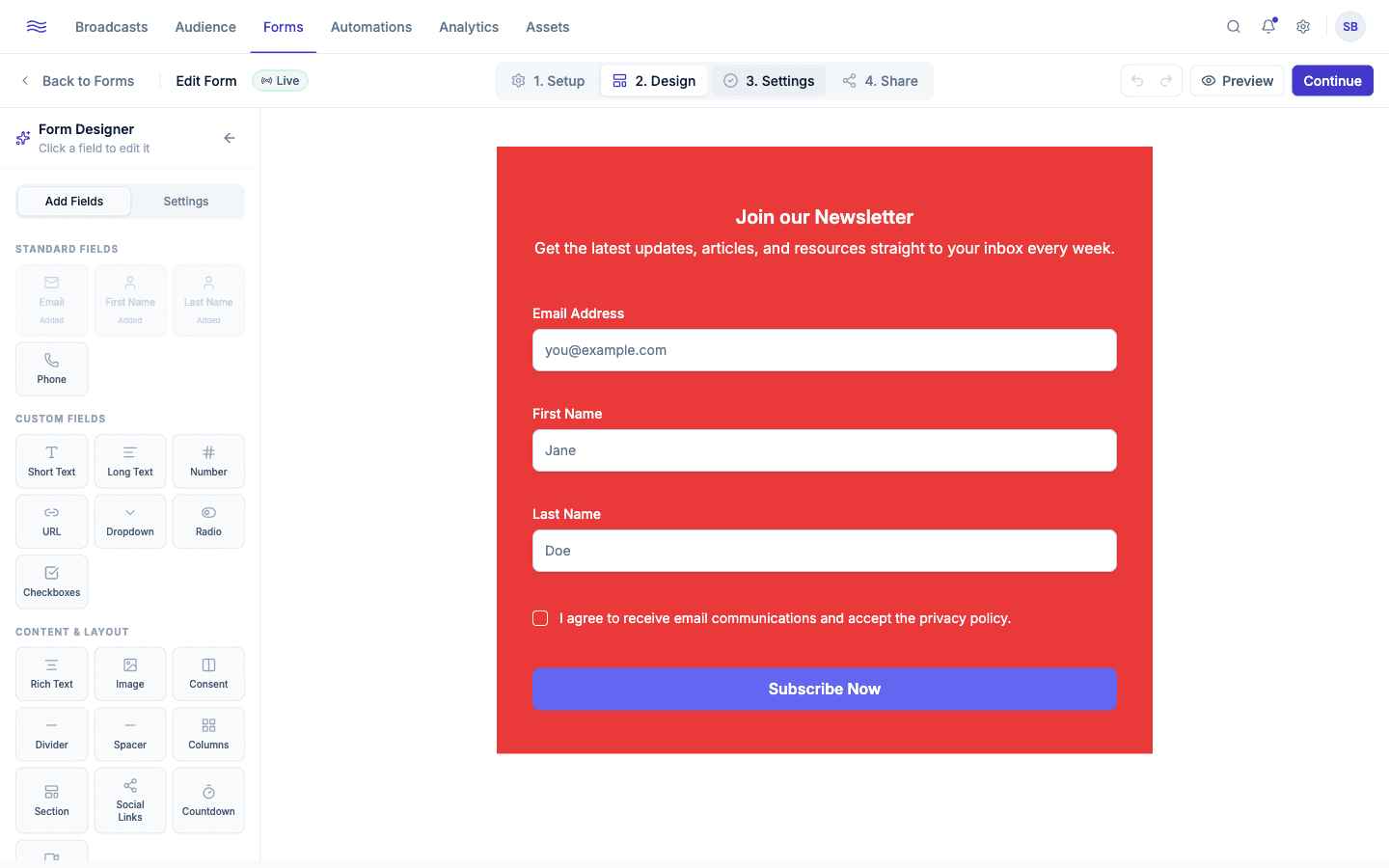
A drag-and-drop canvas with an Add Field popover offering: Rich Text, Image, Short Text, Long Text, Email, First Name, Last Name, Phone, Number, URL, Dropdown, Radio, Checkboxes, Consent, Divider, Columns, Section, Social Links, Countdown, Video. Standard fields like Email can only be added once; they're greyed out with "Already added to the form" after that. Click a field to open its settings panel, and use Preview to check the result before moving on.
3. Settings
Which tabs you see depends on the form type:
- URL (Landing Page): an editable slug with live availability checking, producing
<your-handle>.pelekaform.com/<slug>. - Link Preview (Landing Page): meta title (60-char limit), meta description (160-char limit), and an OG image for social sharing, with a live preview card.
- Trigger (Popup): Immediately, After a Delay (1–30 seconds), On Scroll (25/50/75/90% depth), or Exit Intent.
- After Submit (all types): a Success Message, an optional Redirect URL (overrides the message if set), a Double Opt-in toggle (marked Recommended, since it sends a confirmation email before the contact is added), and a shortcut to configure a Welcome Email automation.
- Compliance (all types): a custom consent statement shown below the submit button (recorded verbatim in the consent audit trail; falls back to your workspace default if left blank), an optional Privacy Policy URL override, and a Capture subscriber timezone toggle (auto-detected from the browser, used later by the broadcast scheduler's "subscriber's local time" send mode).
4. Share
Once published, you'll get a shareable link and embed code (see below). Publishing requires the quickstart checklist to be complete.
Embedding a form
Open Share on any published form for two tabs: Link and Embed.
Two snippet formats are offered:
- A
<script>tag plus a<div data-pe-form="..." data-pe-type="inline">placed wherever you want the form to render. - A plain
<iframe>embed, if you'd rather not add a script to the page.
Every snippet has a one-click copy button. Landing pages don't need embedding at all: just share the pelekaform.com link directly, or point a custom domain at it.
Double opt-in, explained
With double opt-in on, a new subscriber is set to pending and gets a confirmation email; they're only subscribed (and only then do form_submitted/contact_subscribed automation triggers fire) once they click to confirm. The confirmation link expires after 48 hours, and Peleka automatically retries the confirmation email up to 3 times if it goes unconfirmed. It's the safest way to build a list that stays deliverable long-term.