
Team roles & permissions
The five workspace roles, what each can do, and how to invite teammates.
Settings → Team (admin+) is where you invite teammates and manage roles.
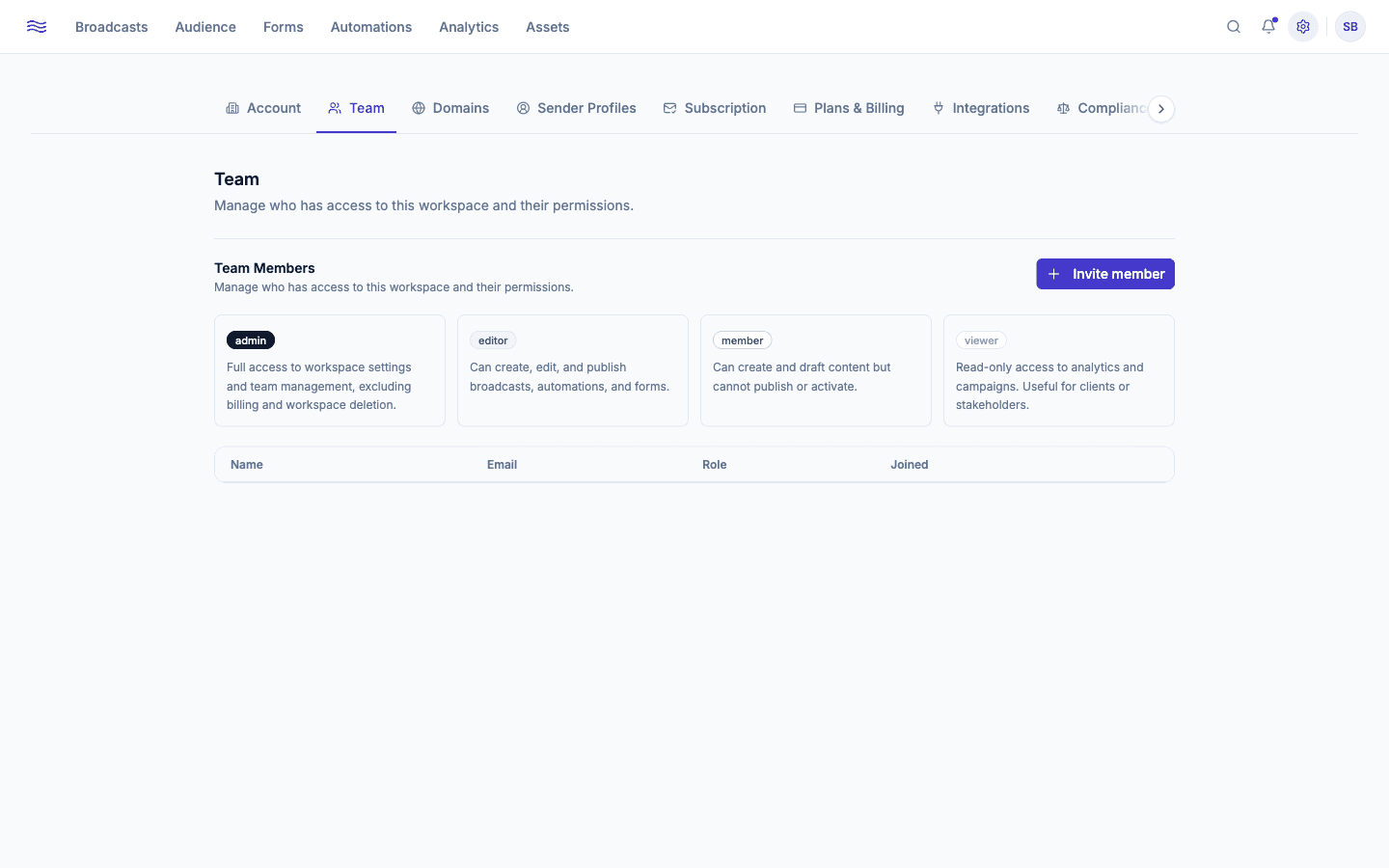
The five roles
Roles form a strict hierarchy; each one includes everything below it.
| Role | Can do |
|---|---|
| Owner | Full workspace ownership, including billing and workspace deletion. There is exactly one owner; transferring ownership is a separate, deliberate action. |
| Admin | Full access to workspace settings and team management, everything except billing and deleting the workspace. |
| Editor | Create, edit, and publish broadcasts, automations, and forms. |
| Member | Create and draft content, but can't publish or activate anything live. |
| Viewer | Read-only access to analytics and campaigns: a good fit for clients or stakeholders who need visibility without edit access. |
Enforced on the server, not just hidden in the UI
Role checks happen on every request, not just by hiding buttons in the interface, so permissions hold even if someone tries to hit the API directly.
Inviting a teammate
Click Invite member, enter their email, and pick a role. They'll get an email with an invite link; accepting it creates their account (or, if they already have a Peleka account elsewhere, confirms their password to join this workspace too).
Trial plans are capped at one member
Free trial workspaces can't add teammates beyond the owner. The invite button shows an "Upgrade to add more members" prompt instead. See Subscription & billing.
Managing existing members
The team table shows each member's role, join date, and actions to change their role or remove them (admin+ only). Pending invitations can be resent or cancelled from the same screen.
Accepting an invite
If you've received an invite link, opening it takes you to a short form (first name, last name, password), or, if you already have a Peleka account under that email, you'll be asked to confirm your existing password instead of creating a new one. Invite links expire; an expired or already-used link shows a clear "This invitation link is invalid or has expired" message rather than a confusing error.